
Kitchen display for Clover
Your Clover orders on a kitchen screen.
FortiKDS shows the kitchen tickets from your Clover POS on tablets or screens in your kitchen, so your team sees what to make and what is already done.
Works with the Clover POS on its own. You do not need FortiPOS.
Clear tickets for the kitchen
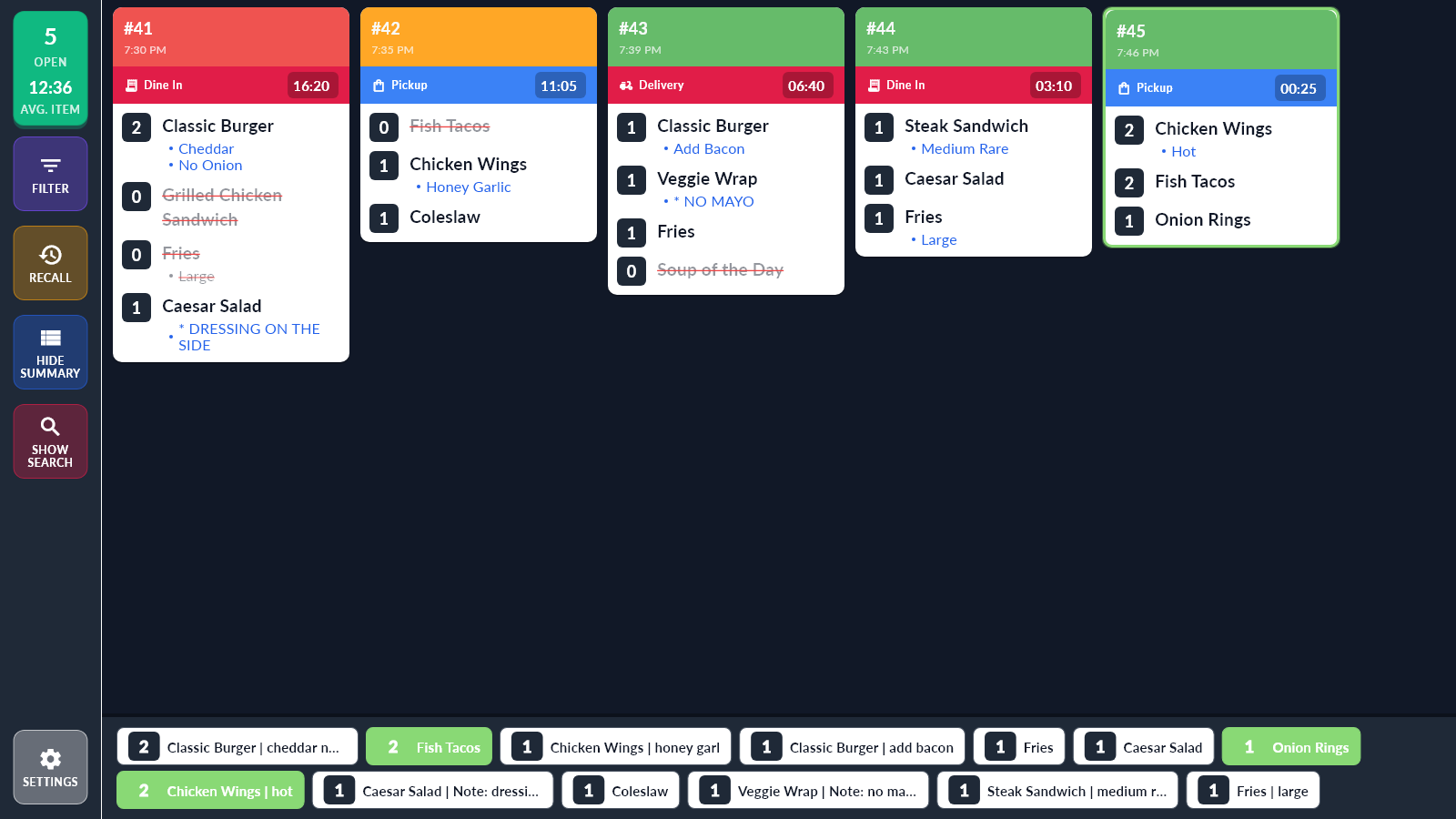
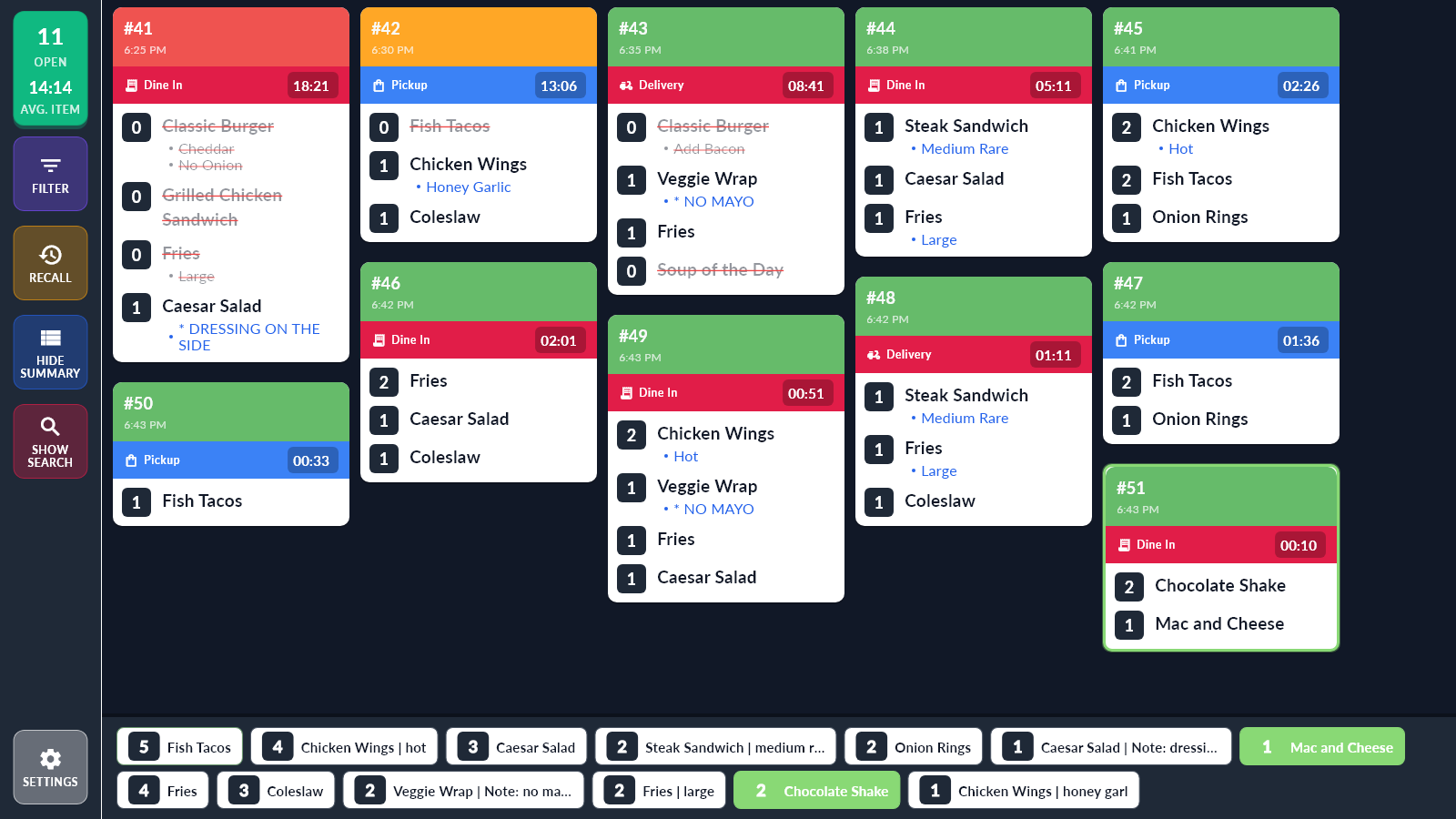
Items, quantities, choices and special instructions together on each ticket.
Each station sees its own items
Send items to the grill, the fryer or the bar with the printer labels you set in Clover.
Less paper
Digital tickets in place of printed slips save paper and printing costs.
On the kitchen screen
What the line needs, on one screen.
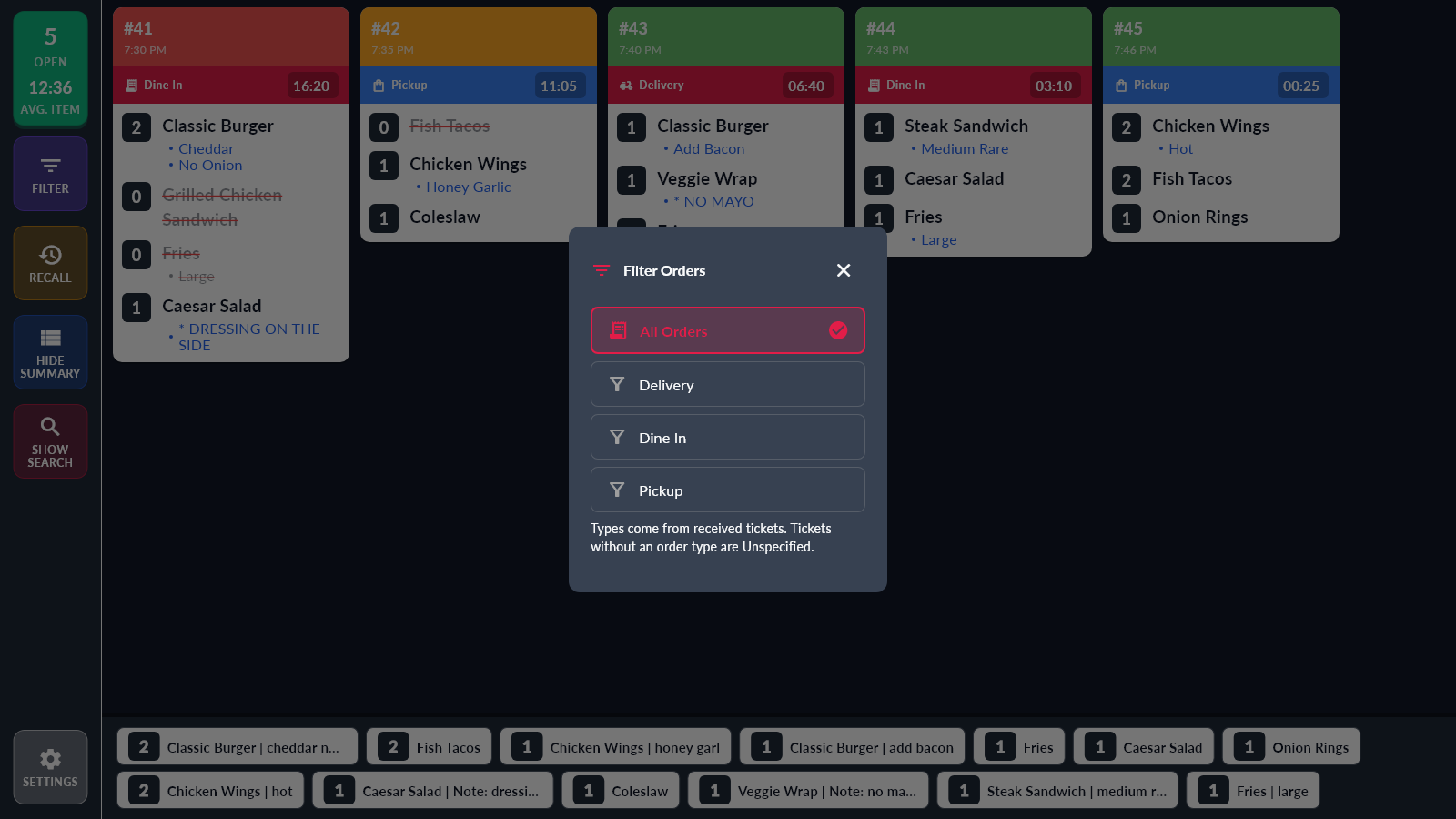
Each order from Clover appears as a ticket with its order number, order type and a running timer.
- Order details togetherQuantities, choices and special instructions stay with each item.
- Late orders stand outA ticket turns orange and then red the longer it waits.
- A count of what is leftA bar at the bottom adds up the items still to make across all tickets.
- Your own order typesTickets show the order type from Clover, such as Dine In, Pickup or Delivery.
- Pass it to the next stationA screen can send finished items on to another screen, such as packing.
- Station names from CloverEach screen shows the name you gave its printer in Clover, such as Grill or Prep.
How it works
Clover sends tickets to your screens like a kitchen printer.
You add each kitchen screen in Clover as an order printer. From then on Clover sends its kitchen tickets to that screen over your restaurant's own network. Your orders, menu and payments stay in Clover.
- FortiKDS Setup, on your Clover deviceInstalled from the Clover App Market. It shows whether your screens are connected and checks your subscription.
- FortiKDS, on each kitchen screenThe display app, on a compatible iPad, Android tablet or Windows PC.
- One subscription for all your screensIt covers every kitchen screen in your restaurant, and Clover bills it with your other apps.
Set it up
Set up in six steps.
You need a Clover device that sends orders to the kitchen, a tablet or PC for each kitchen screen, and one local network for all of them. A guest Wi-Fi network that keeps devices apart will not work.
-
01
Get the display app on each kitchen screen
Contact us and we will send you the FortiKDS display app for your iPad, Android tablet or Windows PC, and help you install it.
Open the app and keep it open during service.
-
02
Put everything on one network
Connect your Clover device and every kitchen screen to the same local network. The subscription check also needs internet access.
-
03
Install FortiKDS Setup on Clover
On your Clover device, open the Clover App Market, install FortiKDS Setup and choose the subscription.
-
04
Add each screen as an order printer
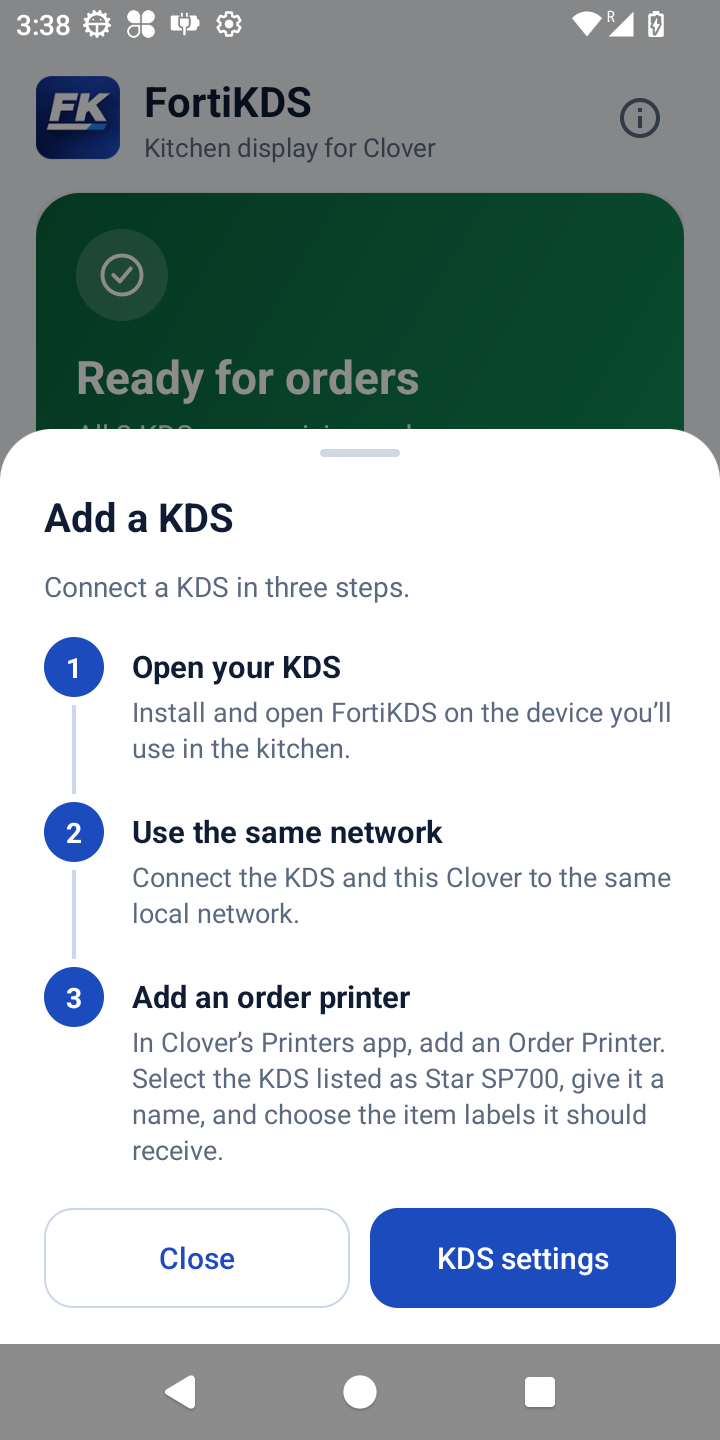
Open Clover's Printers app and add an Order Printer. Clover finds the kitchen screen on your network and lists it as a Star SP700. Select it and give it a name, such as Grill or Prep. The kitchen screen then shows that name.
The KDS settings button in FortiKDS Setup opens the Printers app for you.
Add a KDS in FortiKDS Setup -
05
Choose what each screen receives
In Clover Inventory, give your items printer labels, such as Grill or Bar. On each order printer, select the labels that screen should receive.
An item goes to every screen that has its label, so two screens can show the same item.
-
06
Check the connection and send a test order
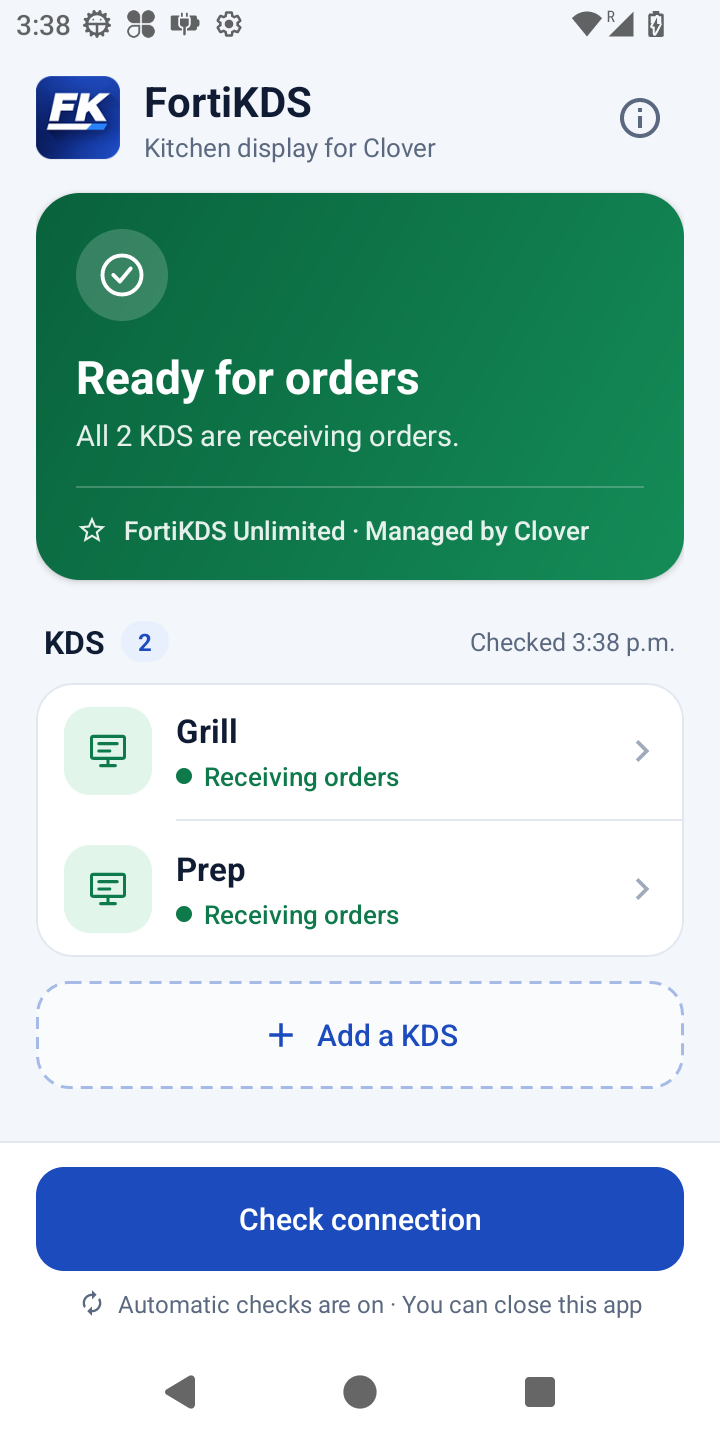
Open FortiKDS Setup and press Check connection. When it shows Ready for orders, send a test order from Clover.
Check that the right items, quantities and instructions arrive on each screen. Clover sends a ticket when it would print to the kitchen, and you choose that timing in Clover's Order Receipts settings.
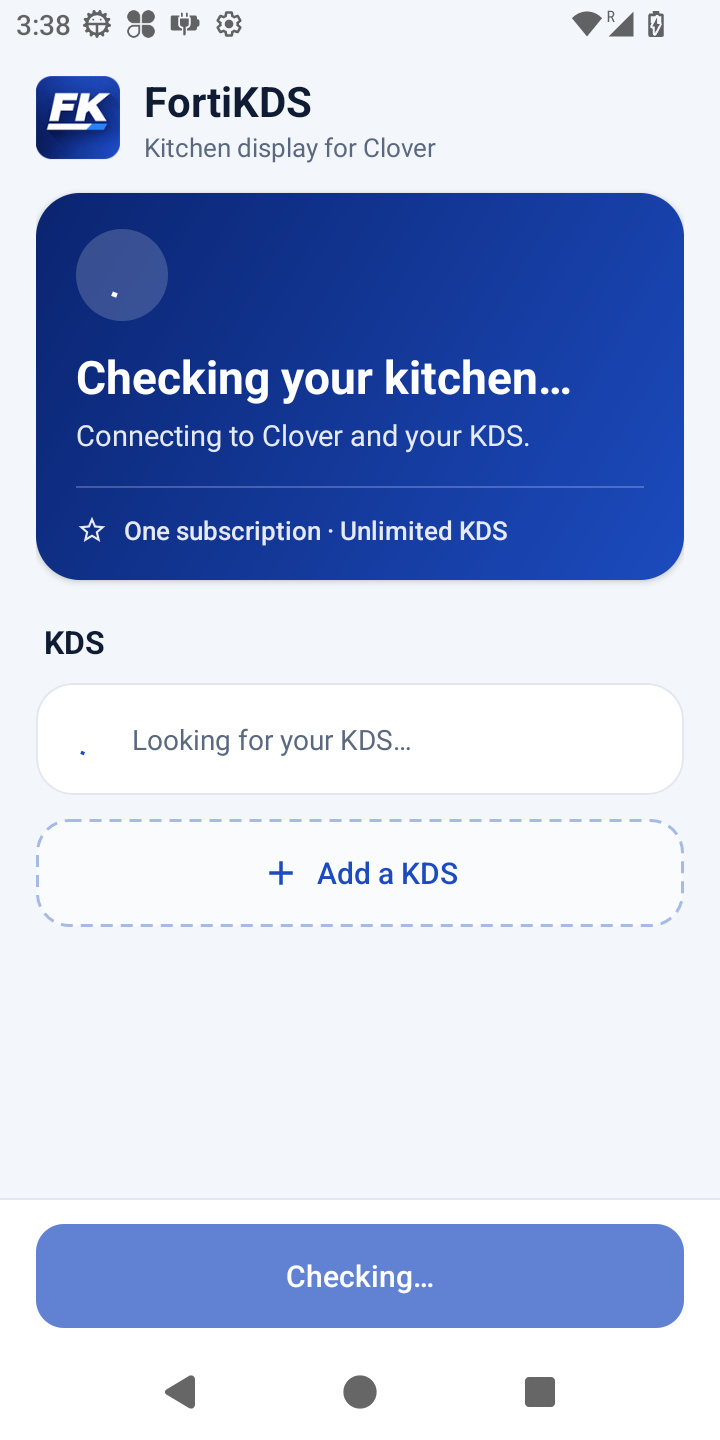
Checking the connection
Every day
Using the kitchen screen.
- Mark an item doneTap the item and it is crossed off. Tap it again to undo.
- Clear a finished ticketTap the top of the ticket to take it off the screen.
- Bring a ticket backPress Recall and choose the ticket.
- Show one kind of orderPress Filter to show only one order type, such as Pickup.
- Rename a screenRename its printer in Clover and the screen follows.
- Change the languageGo to Settings, then Display. Item names stay exactly as Clover prints them.
For your customers
Show customers when their order is ready.
Any FortiKDS screen can be a customer screen. Put it on a TV or tablet at your counter and it shows order numbers in two columns, Preparing and Ready. It is the same app and the same subscription.
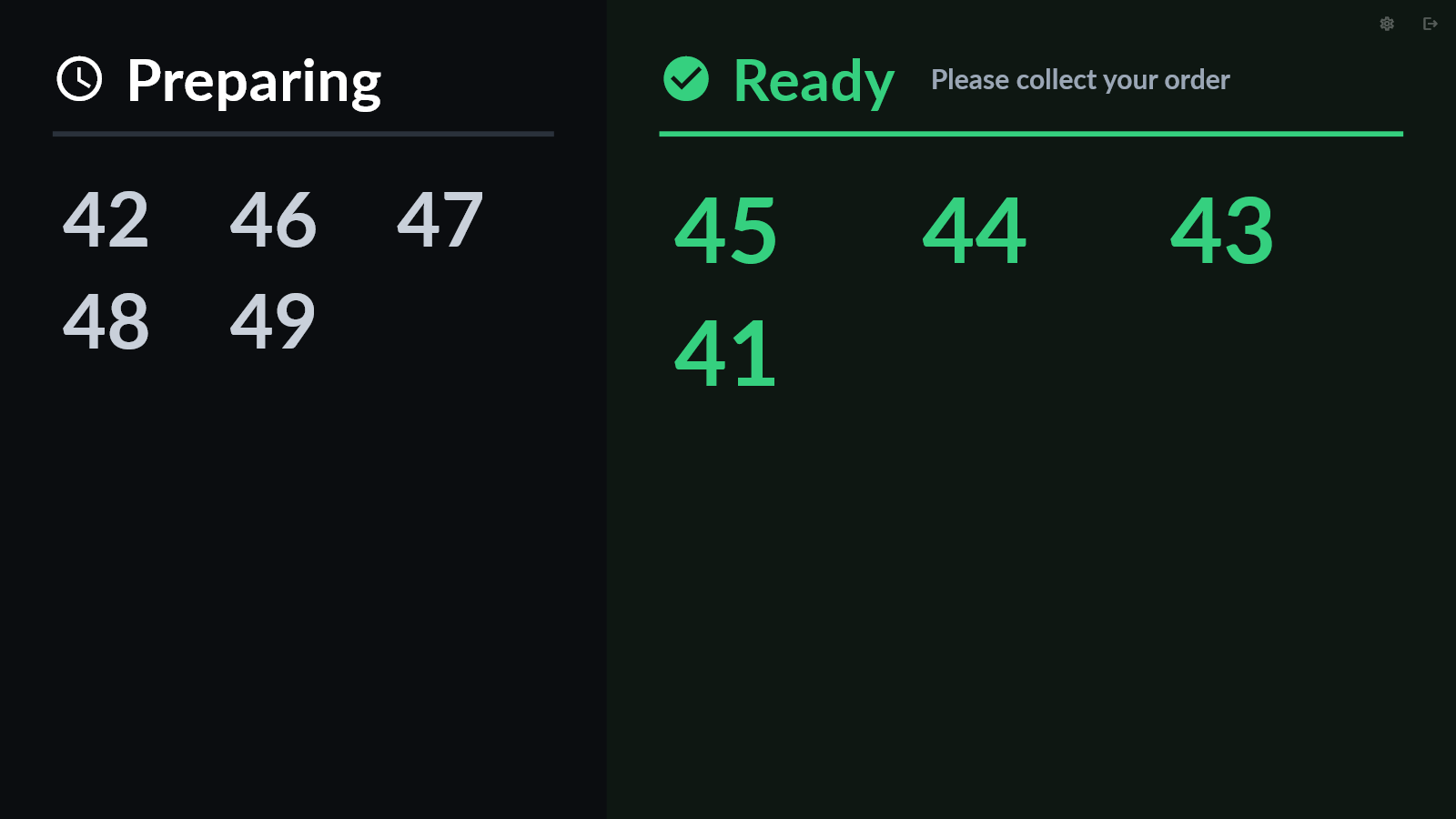
- PreparingA number appears as soon as Clover sends the order to the kitchen.
- ReadyThe number moves to Ready when the kitchen has finished every item on its screens.
- It clears itselfA ready number leaves after the number of minutes you choose.
Set up the customer screen
-
01
Install the display app on the customer screen
Use the same FortiKDS display app as your kitchen screens, on the tablet or PC that is connected to the customer TV. Put it on the same network as Clover.
-
02
Add it in Clover as one more order printer
In Clover's Printers app, add the customer screen as an Order Printer, the same way as a kitchen screen, and give it a name such as Customer screen.
Then select the labels of every item your kitchen screens make. The customer screen waits for the items on the ticket Clover sends it.
Screen in Clover Labels to select Grill screen Grill Fryer screen Fry Customer screen Grill and Fry Leave out the labels of items that only print on paper, such as drinks at a bar printer. No screen can tell when those are done, so the number would never turn Ready.
-
03
Let each kitchen screen report its finished items
On each kitchen screen, open Settings, then Screen Communication. Turn on Send-to-Next and choose the customer screen.
If a kitchen screen already sends its items to another kitchen screen, such as packing, leave it as it is. Only the last screen that handles an item sends to the customer screen.
-
04
Switch the screen to Customer screen
On the customer screen, open Settings, then Display, and choose Customer screen under Screen mode.
Below it you can set how many minutes a ready number stays, and after how many minutes a number that never became ready is removed.
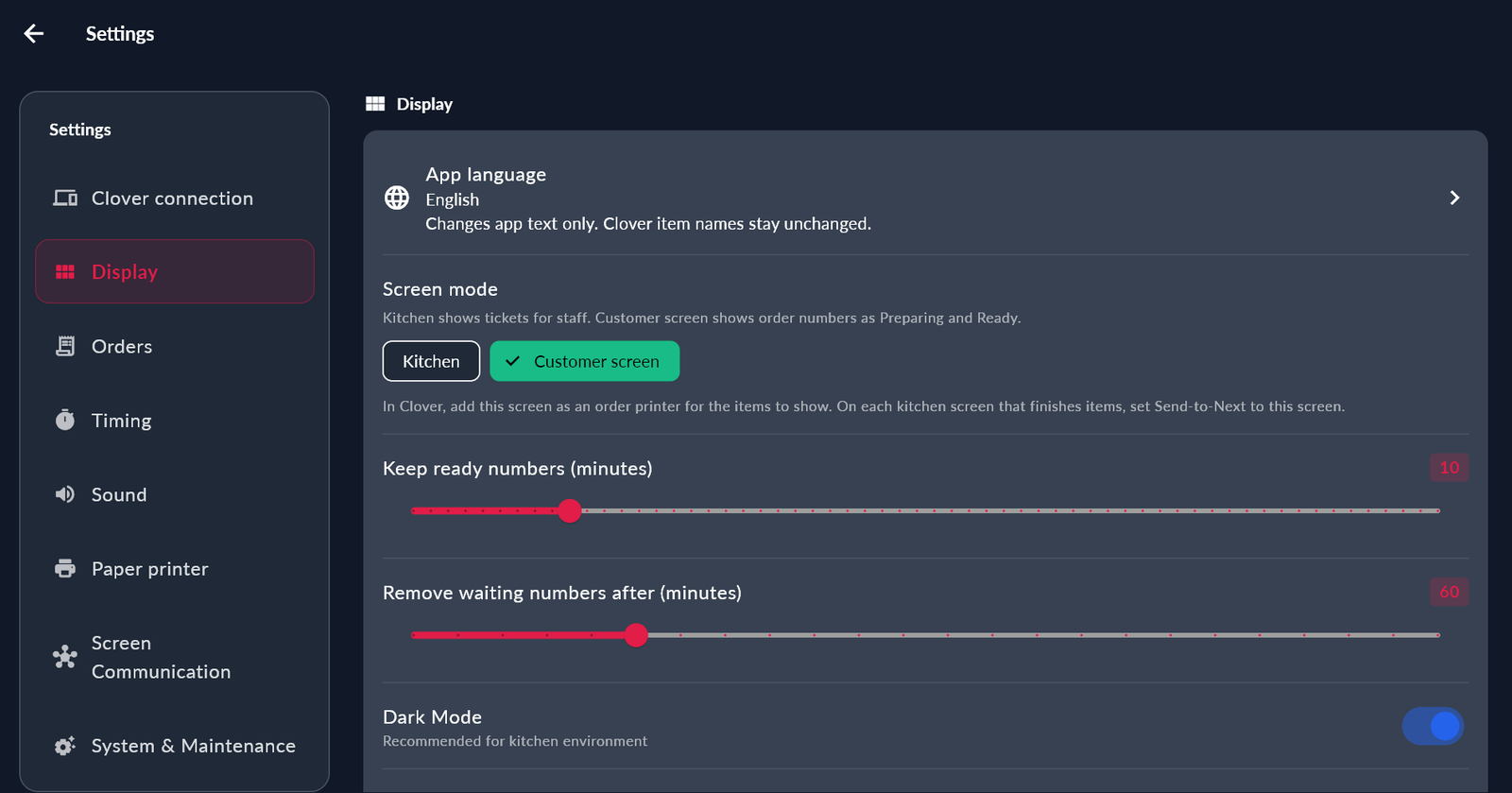
Settings, then Display: Screen mode -
05
Send one test order
In Clover, make one order with an item for each kitchen screen and save it. The order number shows under Preparing.
Finish the items on each kitchen screen. The number moves to Ready when the last screen has finished. If it stays under Preparing, check step 3 on the screen that still has an open item.
To use the device as a kitchen screen again, tap the exit icon at the top right of the customer screen, or choose Kitchen in Settings, then Display. The number on the customer screen is the order number Clover prints on the ticket.
One order, step by step
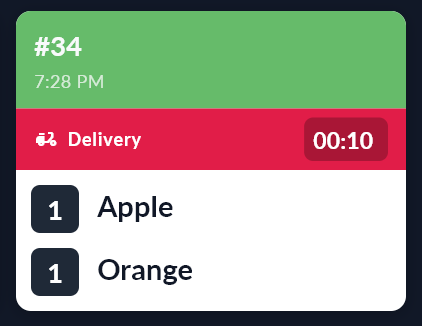
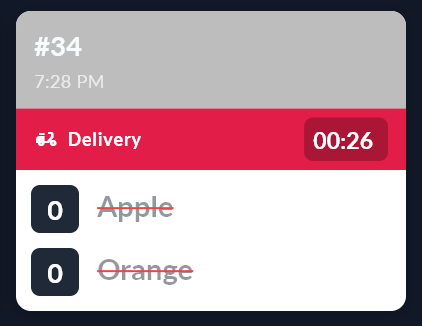
These are the screens of one real test order, number 34. Apple and Orange go to the first kitchen screen. Banana goes to the second kitchen screen.
-
01
The order is sent
Each kitchen screen gets its own items. The customer screen shows 34 under Preparing.
First kitchen screen 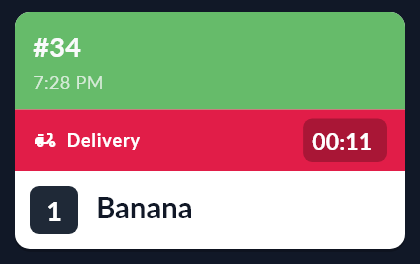
Second kitchen screen 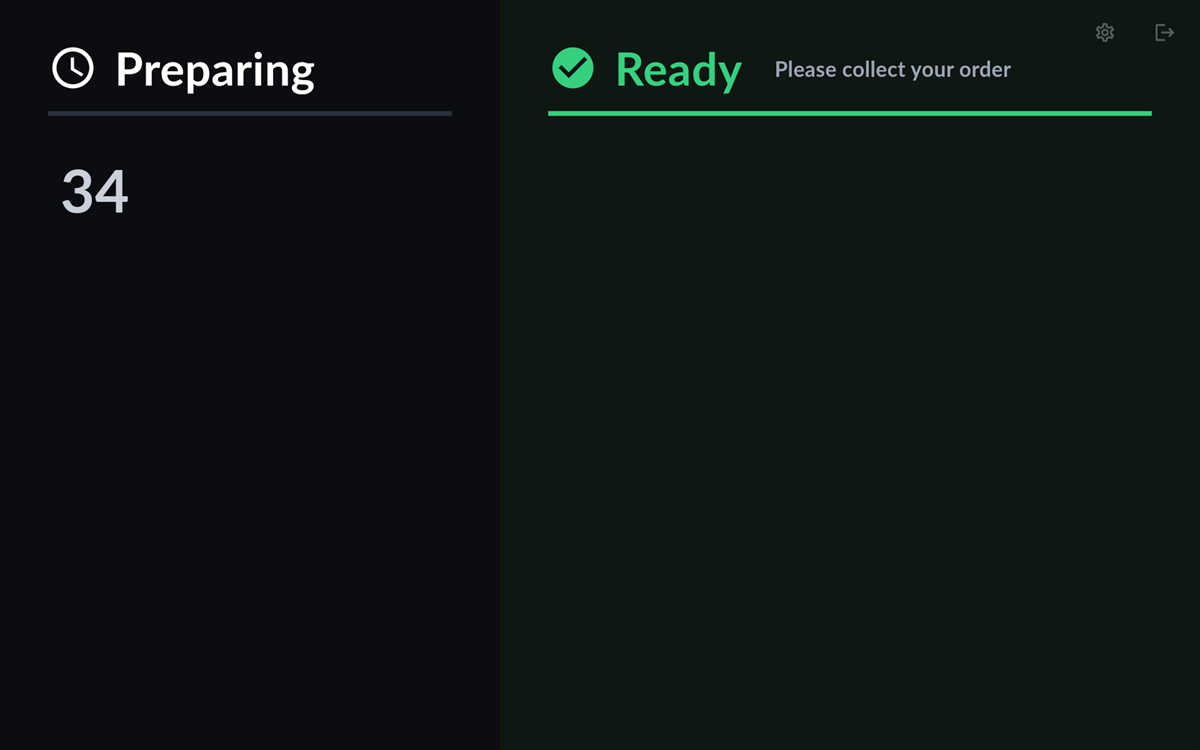
Customer screen -
02
The first kitchen screen finishes
Apple and Orange are crossed off. Banana is still open on the other screen, so 34 stays under Preparing.
First kitchen screen Second kitchen screen 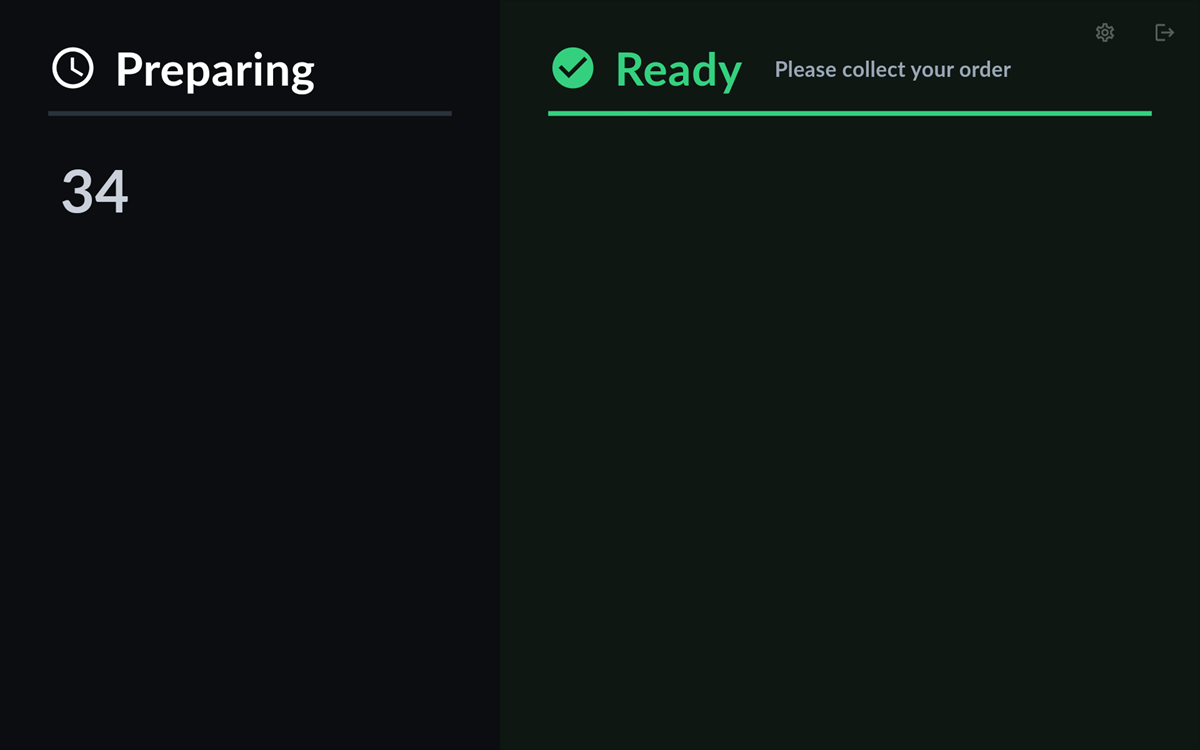
Customer screen -
03
The second kitchen screen finishes
Banana is crossed off. Every item is done now, so 34 moves to Ready.
First kitchen screen 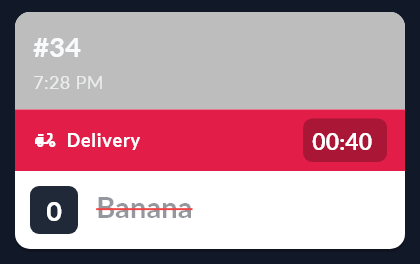
Second kitchen screen 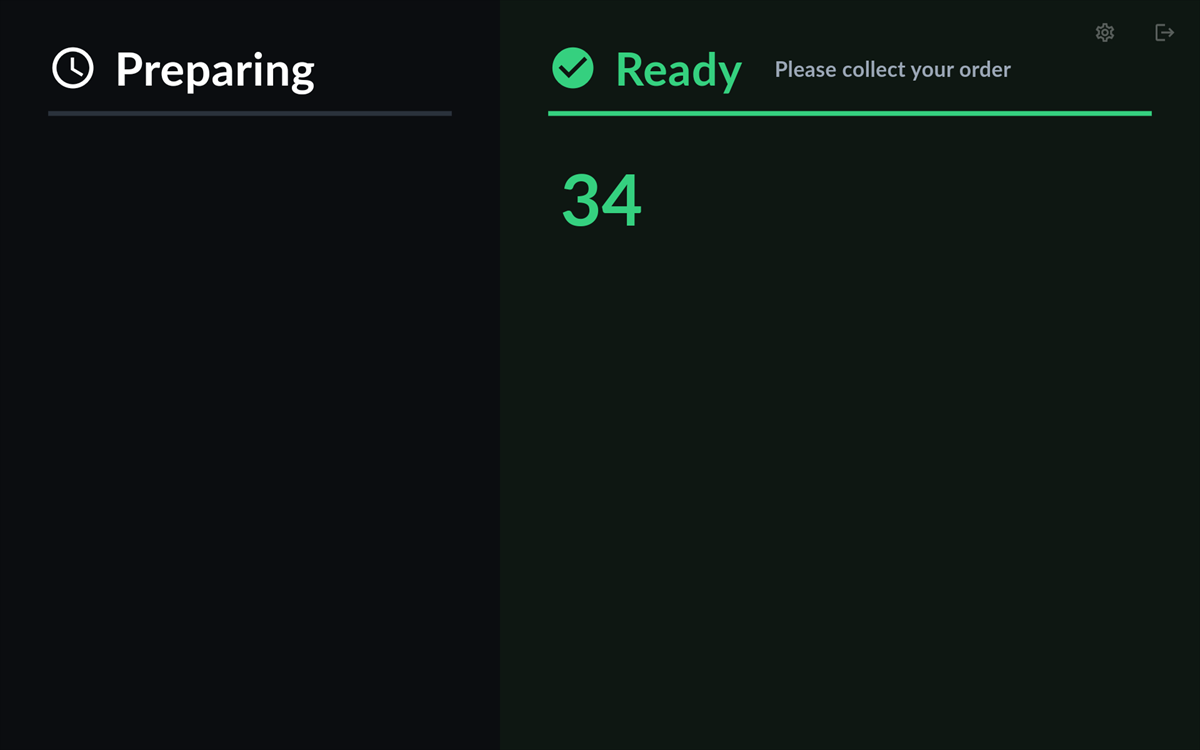
Customer screen
If the kitchen taps a finished item again to undo it, the number goes back to Preparing until that item is finished again.
If something is wrong
A screen stopped getting orders?
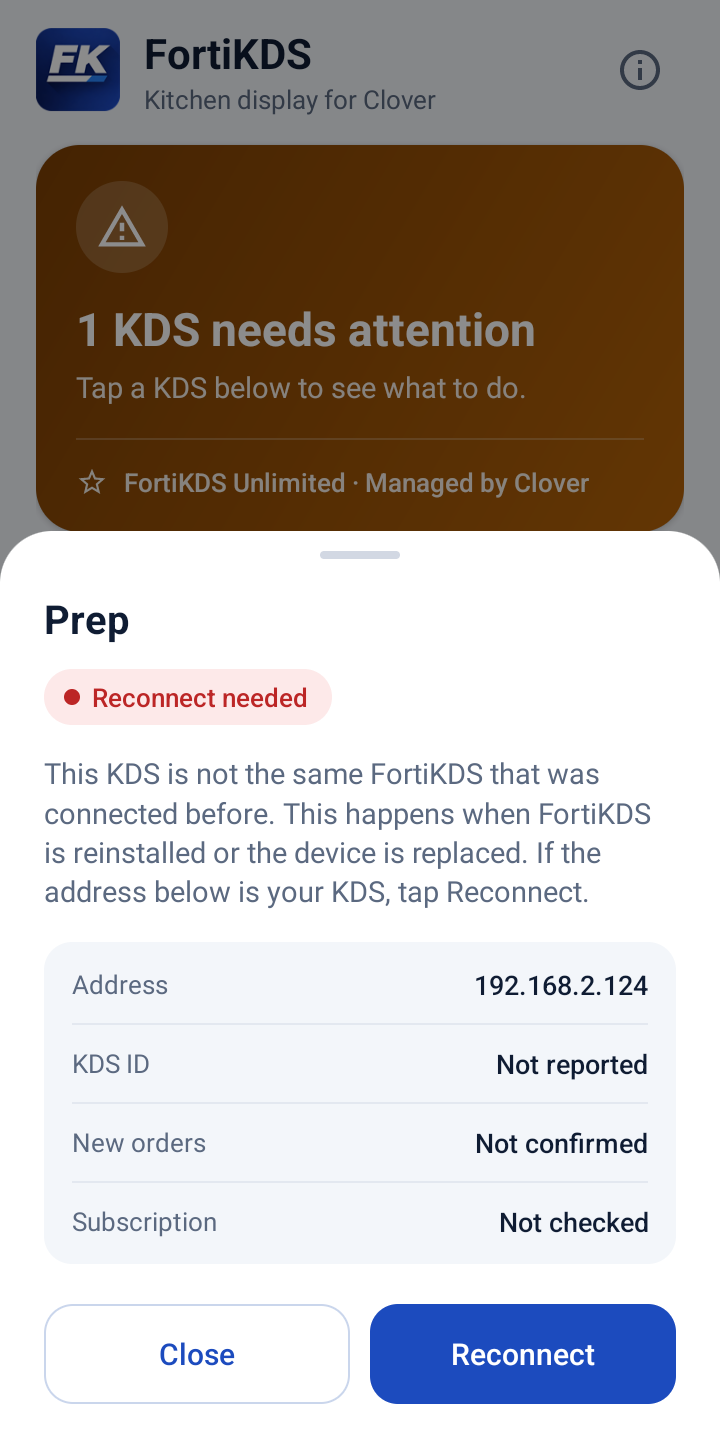
Open FortiKDS Setup on your Clover device. It lists every screen and marks the one that needs attention. Tap that screen and it tells you what to do.
| What FortiKDS Setup shows | What to do |
|---|---|
| Reconnect needed | You installed the display app again on that screen, or replaced the device. Check that the address shown is your screen, then tap Reconnect. |
| Can’t reach this KDS | Open the display app on that screen and check that it is on the same network as Clover. Then tap Check again. |
| New orders paused | Check the FortiKDS subscription in the Clover App Market. Then tap Check again. |
After a screen is connected again, Clover's Printers app can still list it as Offline for a while. It changes to Online when the next order is sent to that screen.
Questions
Good to know.
Do I need FortiPOS?
No. FortiKDS works with the Clover POS on its own. It is a separate product from FortiPOS.
Which devices can be a kitchen screen?
A compatible iPad, Android tablet or Windows PC. Contact us to check your device.
How many screens can I connect?
As many as your kitchen needs. One subscription covers all the screens in your restaurant.
How is it billed?
Through Clover. The subscription is managed and billed by Clover with your other Clover apps.
Can customers see when their order is ready?
Yes. Any FortiKDS screen can show order numbers as Preparing and Ready. See the customer screen setup.
Does the customer screen work with several kitchen screens?
Yes. When one order is split across kitchen screens, its number turns Ready only after every screen has finished its items. See one order, step by step.
I installed the app again on a screen and it stopped getting orders. What now?
Open FortiKDS Setup on your Clover device, tap the screen marked Reconnect needed, and tap Reconnect. See what to do when a screen stops getting orders.
What happens when an order changes?
Items added to an order arrive as a new ticket. If an item is cancelled in Clover, tell the kitchen as you do today: the screen does not remove it by itself.
What if the internet goes down?
Tickets travel over your own local network, so the kitchen keeps receiving them. The subscription check needs the internet. If it cannot be completed for more than a day, new tickets pause until it can, and tickets already on the screen stay.
Where do I get help?
Send us a message through the contact page and we will help you set up.
Want FortiKDS in your kitchen?
Tell us about your Clover setup and we will help you get started.
Clover is a trademark of Clover Network, LLC. iPad is a trademark of Apple Inc. Android is a trademark of Google LLC. Windows is a trademark of Microsoft Corporation.